5 Things to Check Before Your Bazaar Opens
By Emma · 2nd November, 2026

Table of Contents
By the time your brand arrives at a year-end bazaar, the venue, stock and staff roster are usually sorted. What’s easier to miss is how the pop-up will work alongside your stores. If a regular stops by, will the team recognise her? If her size is back at another outlet, can she still buy it here?
Walk through a sale with the team before the doors open. These five checks cover what happens at the counter, how to keep the queue moving and where the owner can check sales while the event is still running.
1. Can your POS take orders if the venue Wi-Fi drops?
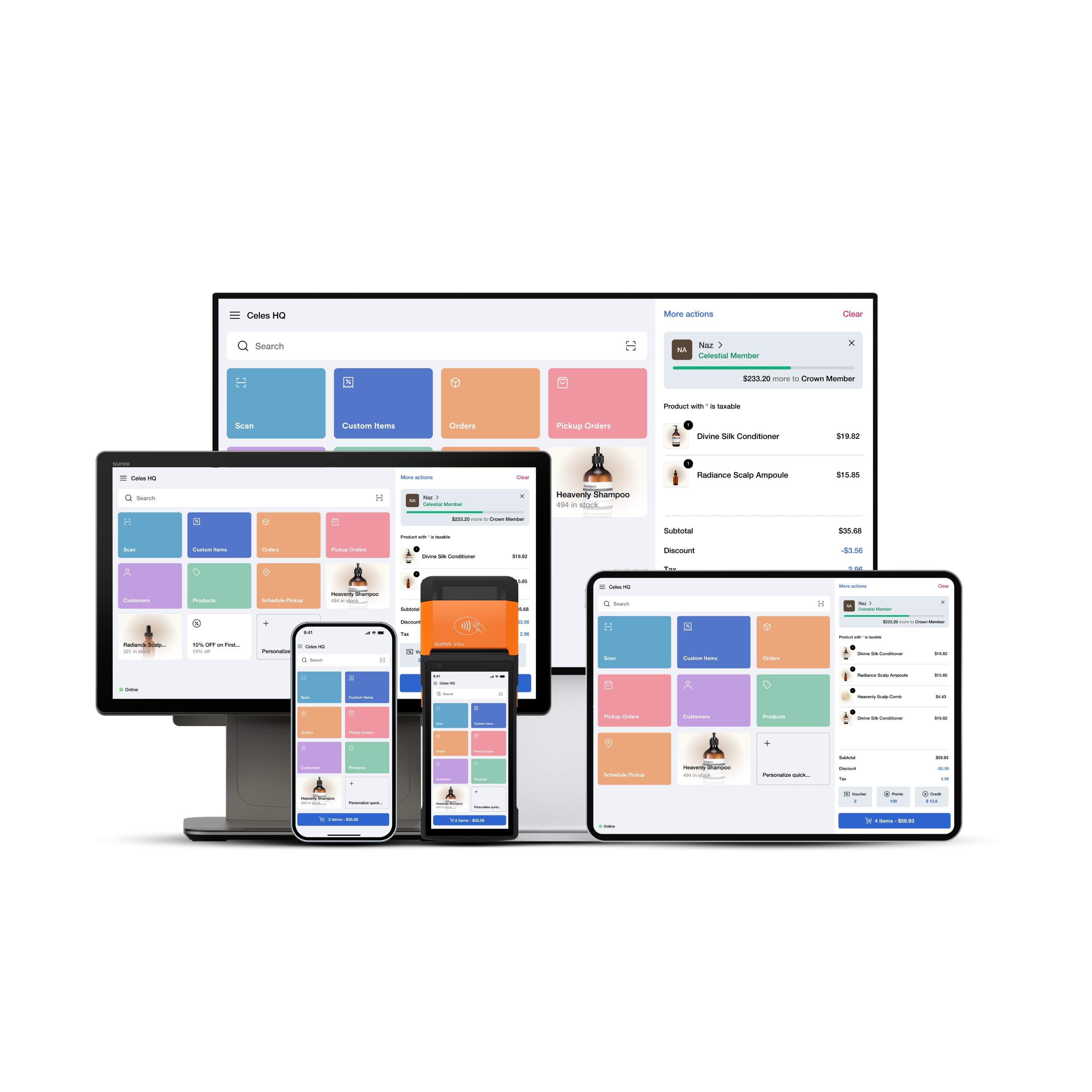
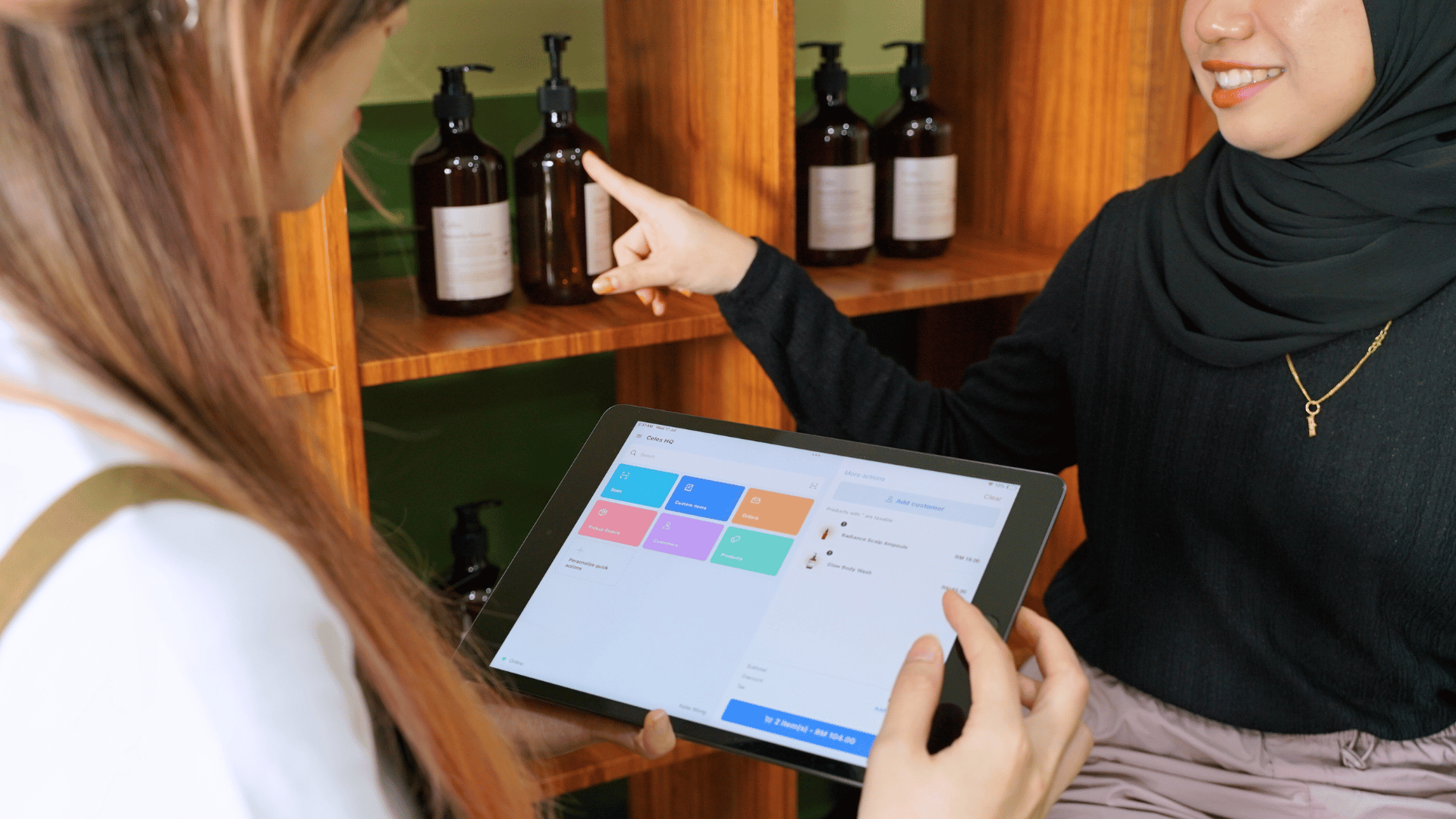
A shopper points out a bottle on the shelf. The team member adds it to her order on the tablet, then the venue Wi-Fi drops. Can they still take the order and register her as a new customer while she’s at the counter?
EasyStore POS offline mode lets staff continue taking orders and registering new customers. On the device you plan to bring, switch off the internet and try both with test details. Reconnect and check that the team can find the order and the customer record.
2. Can you complete the sale when the right size is at another outlet?
A shopper tries on a jacket and wants a medium. The rail is empty. With EasyStore POS, the team can check where that size is in stock across selling locations and arrange a transfer while the shopper is still at the counter.
Give her two practical options. If the jacket can reach the pop-up this afternoon, arrange the transfer and invite her to keep browsing while she waits. If she’d rather have it delivered, confirm the delivery slot and her preferred address, then take payment at the bazaar. If your team can deliver tomorrow, tell her so before she pays.

3. Can your team recognise a regular and welcome a first-time buyer?
A shopper tells the team, “I bought the navy tote at your other store.” If she has to explain her purchase history all over again, the pop-up can feel like a different brand. A first-time buyer has a different need: she wants to know where she can find you after the weekend.
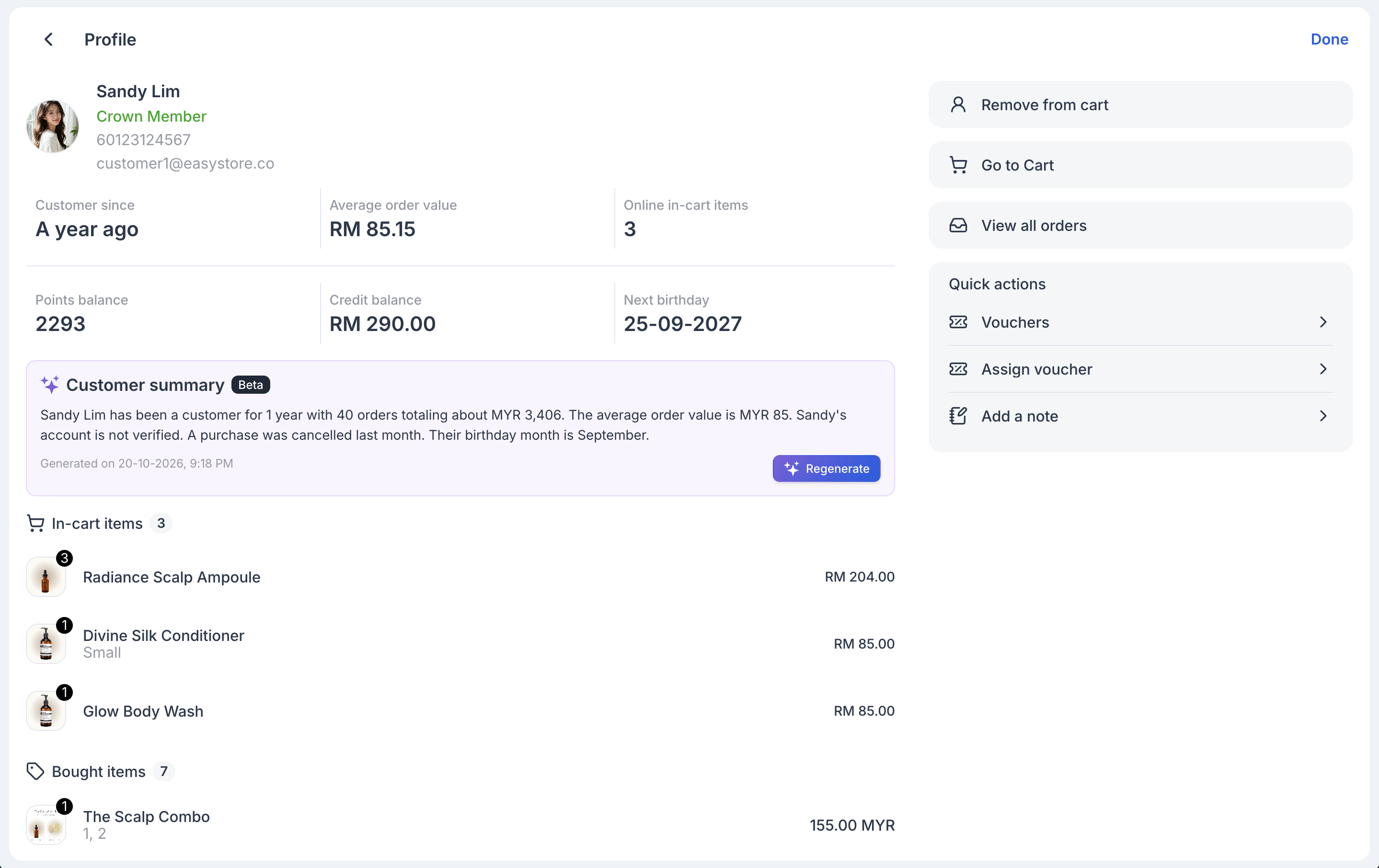
Look up the regular by mobile number. Her profile shows her membership tier and the items she has bought. With AI Customer Summary enabled, staff can also read a short account of her history, such as how long she has shopped with the brand and how often she orders. A glance at her bought items gives the team a natural opening: “You picked up the navy tote last time. Would you like to see the new colour?” For a first-time buyer, offer to register her by mobile number and ask whether she’d like updates about the next collection.
4. Can you serve the next shopper while a payment is held up?
One shopper needs another minute in her banking app. The person behind her is ready to pay. Use Save Cart in EasyStore POS and invite the first shopper to finish her payment at the side of the counter.
The cashier can now check out the next customer. When the first shopper is ready, reopen her saved cart: the items are still there, so nobody has to scan the jacket, tote and gift box a second time. Check her payment status before completing the sale.

5. Can you see how each pop-up is doing without waiting for a WhatsApp update?
It’s Saturday afternoon and two pop-ups are running at once. The usual WhatsApp update might tell the owner how much one team has sold by 2 pm. By the time the other team replies, they’re reporting on different hours.
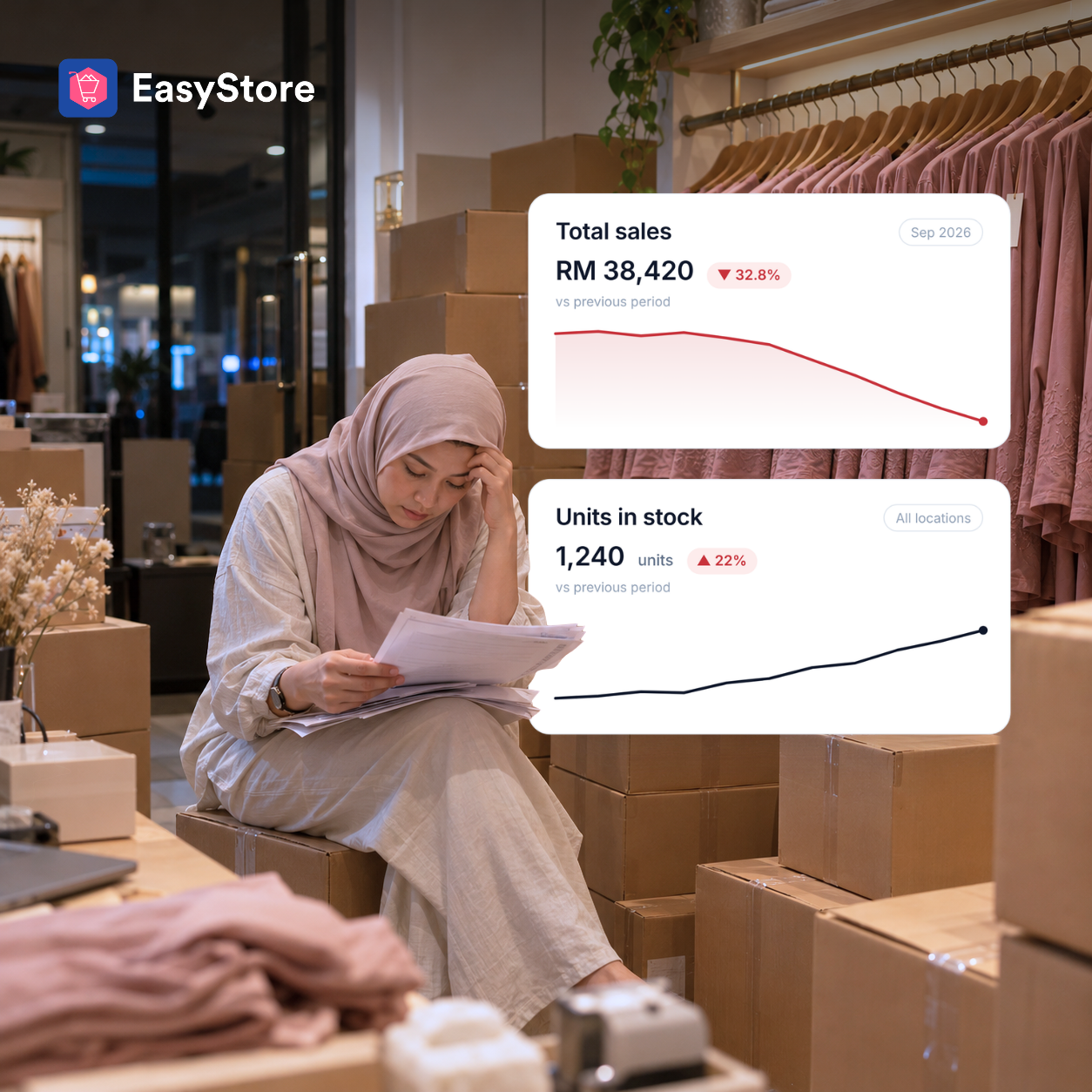
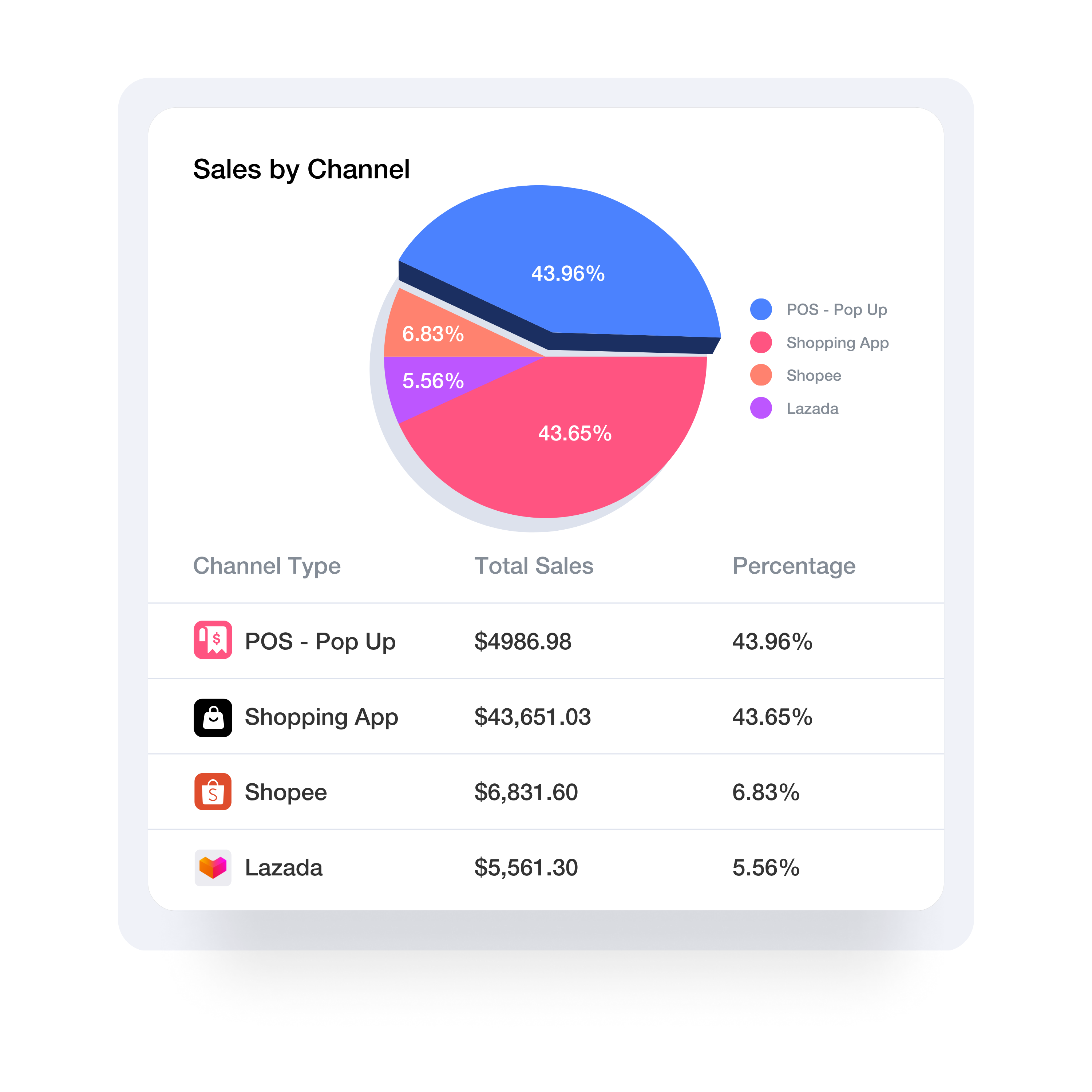
The owner can open the EasyStore app to check sales by pop-up, see which products are selling well, check what needs replenishing and review how many new customers each location has registered. If the navy tote is selling quickly at one pop-up, check the stock figures before deciding where to send the next batch.
Planning a year-end pop-up?
- Bring a device you already own. Run EasyStore POS on a phone, tablet or laptop without buying a dedicated till.
- Offer familiar ways to pay. Accept QR payments, Visa, Mastercard and buy now, pay later (BNPL), depending on your payment setup.
- Give each pop-up its own location. Allocate stock to each event so the team can tell it apart from stock at other pop-ups or in your online store.
- Keep stock up to date as you sell. Each sale updates inventory for that location, saving the team from entering sales again after closing.
- Welcome new customers by mobile number. Register a first-time shopper at checkout and ask whether they’d like to hear from you again.
- Check live sales from the EasyStore app. See how each pop-up is selling while the team serves customers.
- Bring shoppers back after the bazaar. Send opted-in buyers a link to a product they might like in your online store, or invite them to your next pop-up with the date and location.